Why the object disappears when you tap “Revert to Original”
The full method behind the iPhone photo trick — the two hidden layers of every photo, the AirDrop setting that carries them, and what the app does in between.
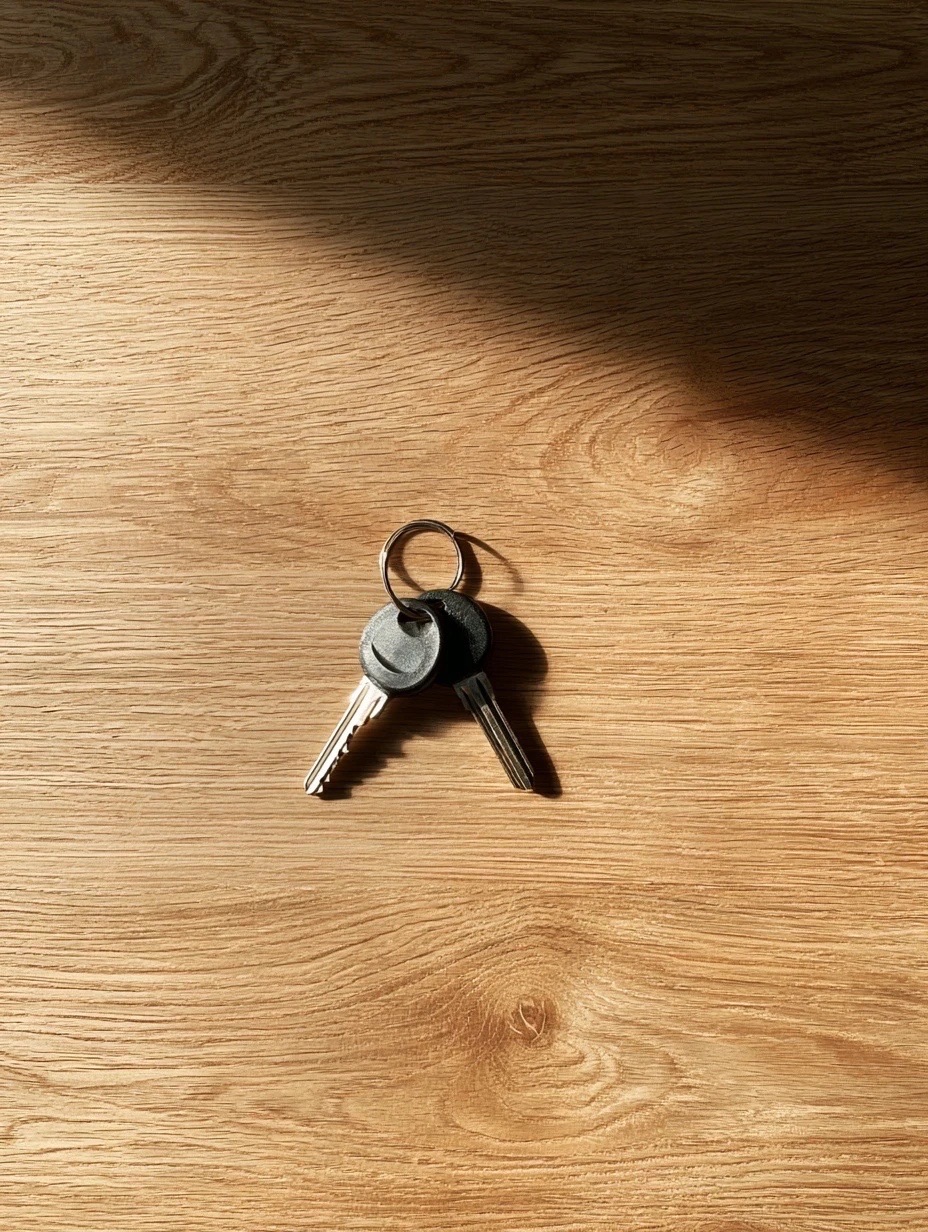
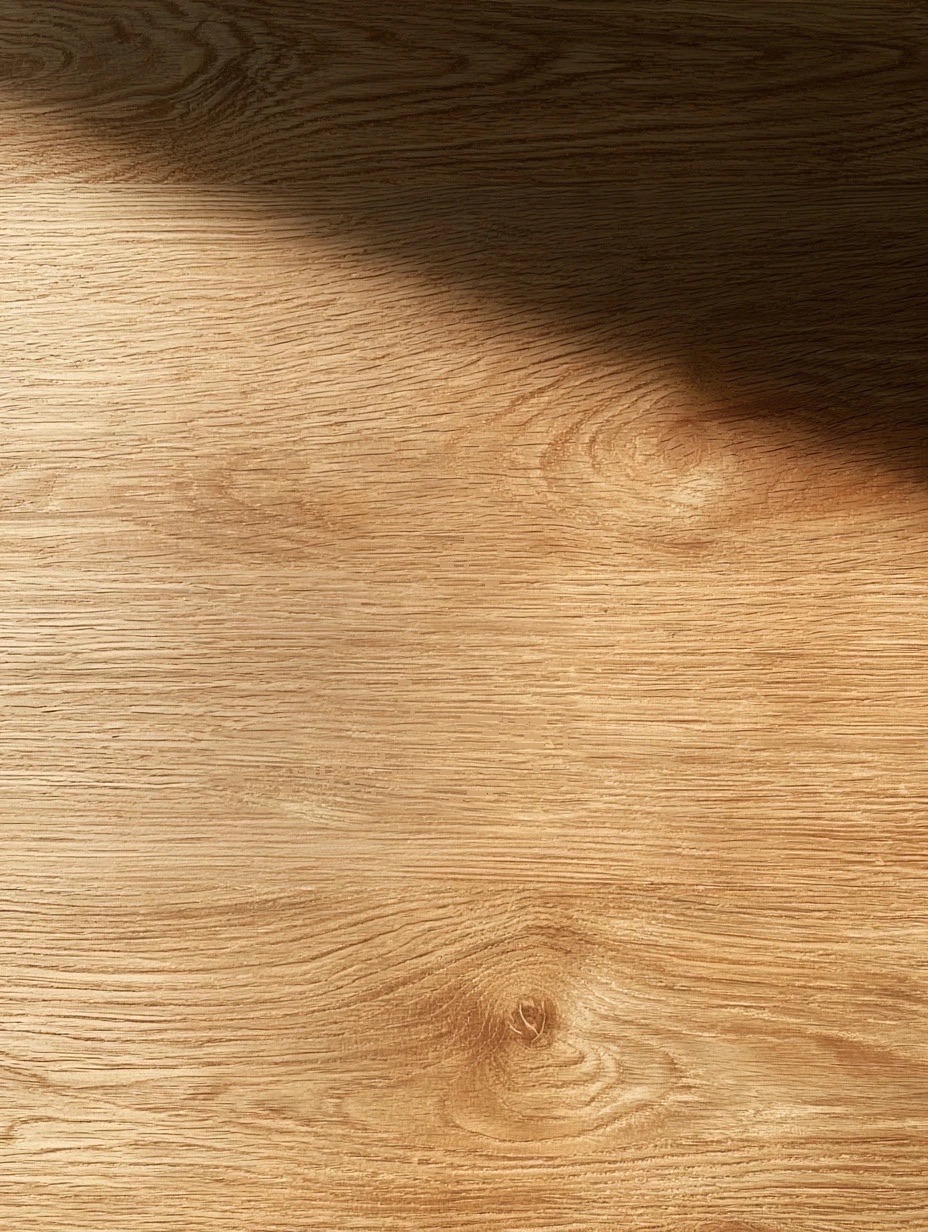
The photo is saved with its two layers swapped. Every iPhone photo stores an original plus an edit. A trick app saves the empty scene as the original and the real photo as the edit. Your library shows the edit, so you see the object; Revert to Original throws the edit away and shows the empty scene.
Every iPhone photo has two layers
When you edit a picture in Photos — crop it, add a filter — the iPhone keeps the untouched original and stores your changes as an edit. What you see in your library is the edited version. Revert to Original discards the edit and shows the original again. Apps can create photos like this too, through Apple’s public photo-editing interface (PhotoKit).
The trick saves them the wrong way around
- The app takes the real photo: the object on the table.
- It finds the object you tapped and erases it — together with its shadow — from a copy, filling the gap with the surrounding table.
- It saves the erased image as the photo’s original and the real photo as its edit.
So the library shows the object. Revert, and you get the “original”: the empty table.
Why AirDrop doesn’t break it
In the AirDrop share sheet there is an Options button at the top with a switch called All Photos Data. With it on, the iPhone sends the original image, the edited image and a small .AAE file that describes the edit. The receiving iPhone rebuilds the same two-layer photo, so Revert works there too. Messages, email and social apps send only the visible image — and then there is nothing to revert to.
What makes or breaks the illusion
- The erase. Plain tables and floors give a clean result. Busy patterns, hard shadows or an object that fills the frame leave smudges.
- The setup. Forgetting All Photos Data is the most common reason the reveal fails.
- The camera. The app’s camera looks ordinary, so nobody suspects a special app was used.
What we tested
We built Vanish and checked the whole chain: a photo made by the app, saved to Photos, synced to a second Apple device, and reverted there — the object disappeared. The before/after above is real output of the app on an AI-generated test photo.
How to catch it next time
- Watch for the performer tapping Options before AirDropping.
- Tap Edit before you revert: a fresh photo shouldn’t already be revertible.
- Zoom into the spot where the object was.
Vanish is free for iPhone.
Questions
Why does it still work after the photo is AirDropped to my phone?
Because the performer turned on Options → All Photos Data in the AirDrop share sheet. That sends the original, the edit and a small .AAE file describing the edit, so your iPhone can revert it too.
Why doesn’t it work when I send the photo by text message?
Messages, WhatsApp, Instagram and most other apps send only the image you see. The hidden original is not included, so Revert has nothing to go back to.
Is there a free app that does this trick?
Yes — Offchair Magic Kit is a free iPhone app whose first trick, Vanish, does exactly this: it erases the object you tap and saves the photo with the layers swapped, ready to AirDrop.
Does it work on Android?
The reveal relies on the iPhone Photos app’s Revert to Original and on AirDrop’s All Photos Data option, so both phones need to be iPhones.
Is it safe? Does it change anything else on my phone?
It is an ordinary photo with an edit attached. Delete it and it is gone. Offchair Magic Kit processes everything on the iPhone and uploads nothing.
How can I tell if a photo was set up for this trick?
Open it and tap Edit before doing anything else. A photo that was “just taken” should not already offer Revert. Zooming in on the area may also show a slightly too-smooth patch.